Open Applications → Forms & panels → Edit. The single-page editor groups Form setup (Basics, Roles & reviewers, Channels), Applicant experience (Questions, Messages, Buttons & actions), and Form options (Form behavior). Select a tile to edit inline and use All settings to return. Save changes before publishing your panel.
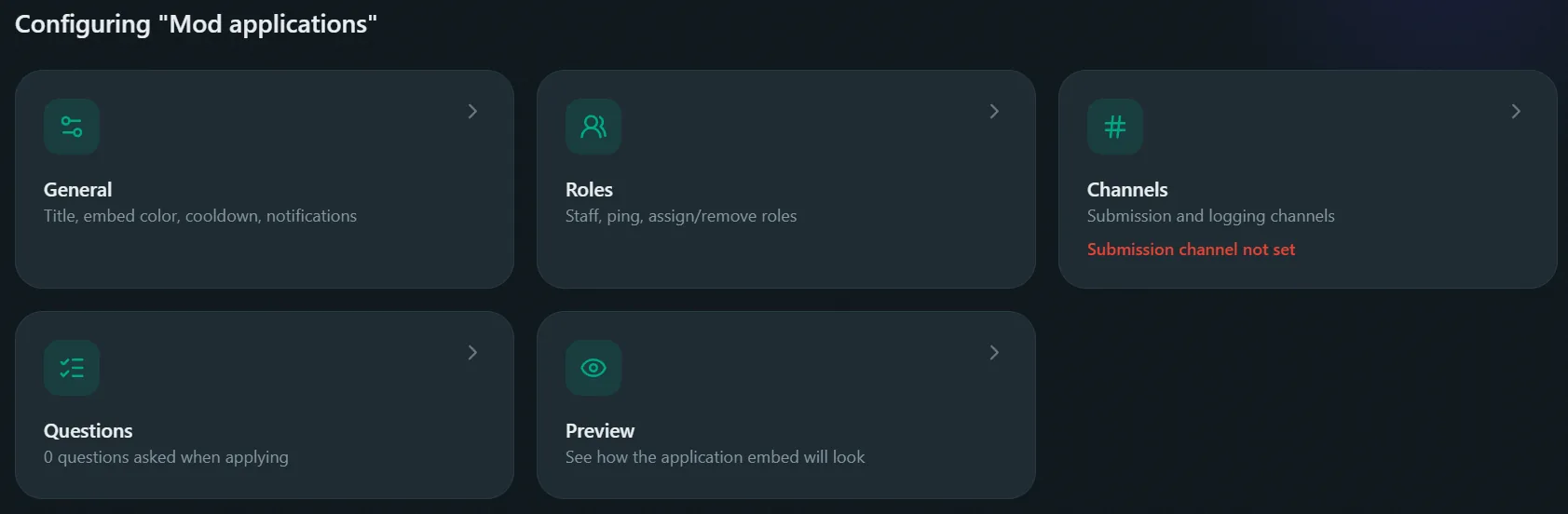
General
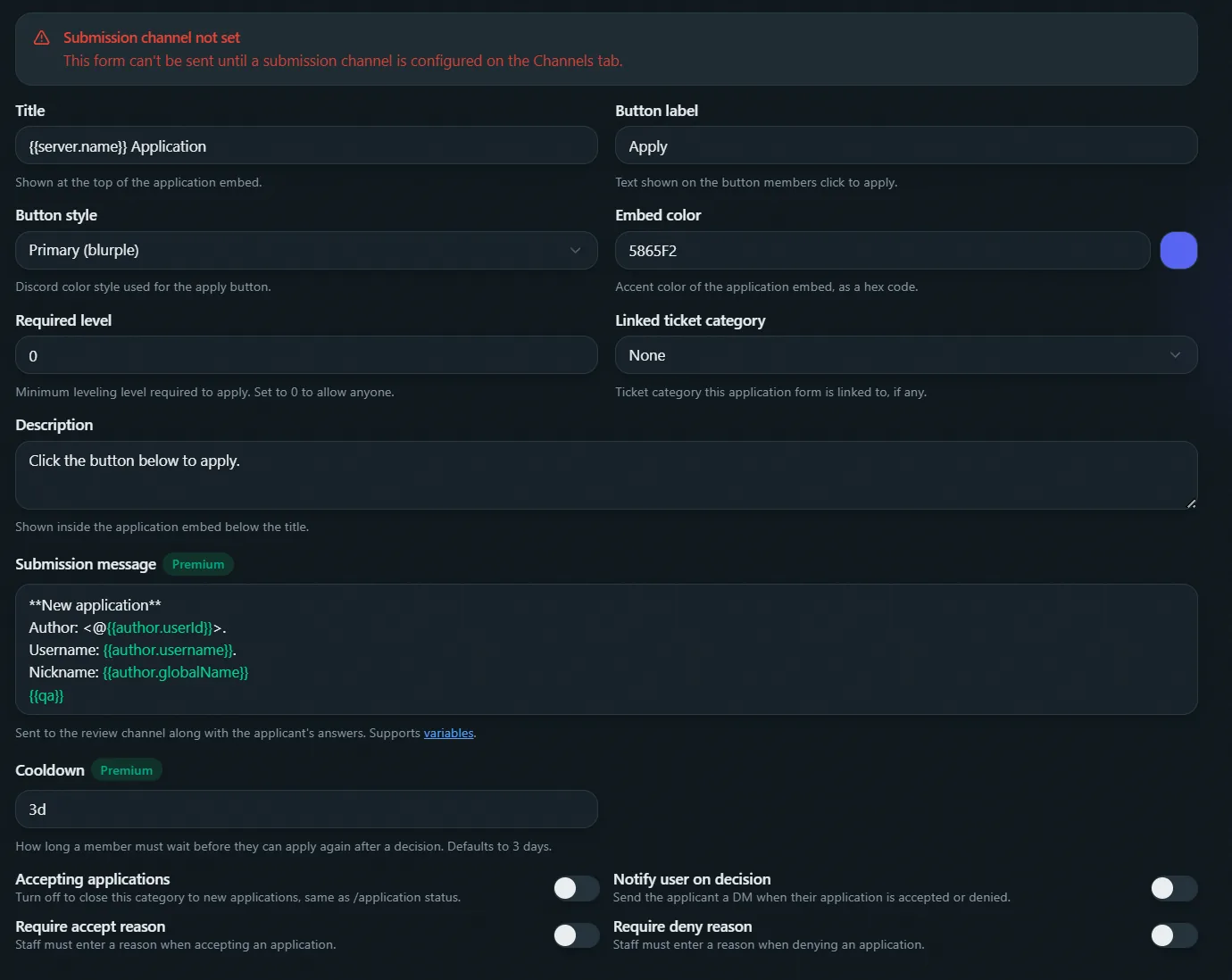
- Title / Description: the panel's heading and body. Default title includes
{{server.name}}, see Variables. - Button label / style: the Apply button.
- Embed color: hex accent color.
- Linked ticket category: adds an Open Ticket button to submissions. Jail categories can't be linked.
- Required level: minimum level to apply, only enforced while Leveling is on.
- Cooldown Premium: wait time after a denial before reapplying (default 3 days), e.g.
3d,12h.
Whether a category is currently open isn't a dashboard field, it's /application status. See Commands.
Messages
- Notify user on decision: DMs the applicant when accepted or denied. On by default.
- Submission Premium: template for the posted submission, supports
{{qa}}for the formatted Q&A list. See variables. - Accepted / Denied: DM text and color for each outcome, plus Require accept reason / Require deny reason (deny defaults on, accept off) and that decision's reason-modal title.
- Decision reason modal: shared label and placeholder for the reason field staff fill in when accepting or denying.
- Timeout & review thread: DM sent if an in-progress application times out, and the name template for the thread opened under each submission.
Buttons
Every button an application can show, configured independently: Accept, Deny, and Open Ticket (only relevant with a linked ticket category). Click a card to edit one:
- Show button / Grey out button: hide it entirely, or keep it visible but unclickable.
- Button text and emoji: overrides the default label, pick any server or Unicode emoji.
- Button style: Discord's four button colors.
- Allow the applicant: lets the applicant themselves use this button, mainly useful for Open Ticket.
- Allowed roles: by default, staff and these roles can both decide applications.
- Restrict to allowed roles only: ignores staff entirely, only the roles in Allowed roles qualify.
- Disabled roles: always blocked from this button, even if it's staff.
Roles
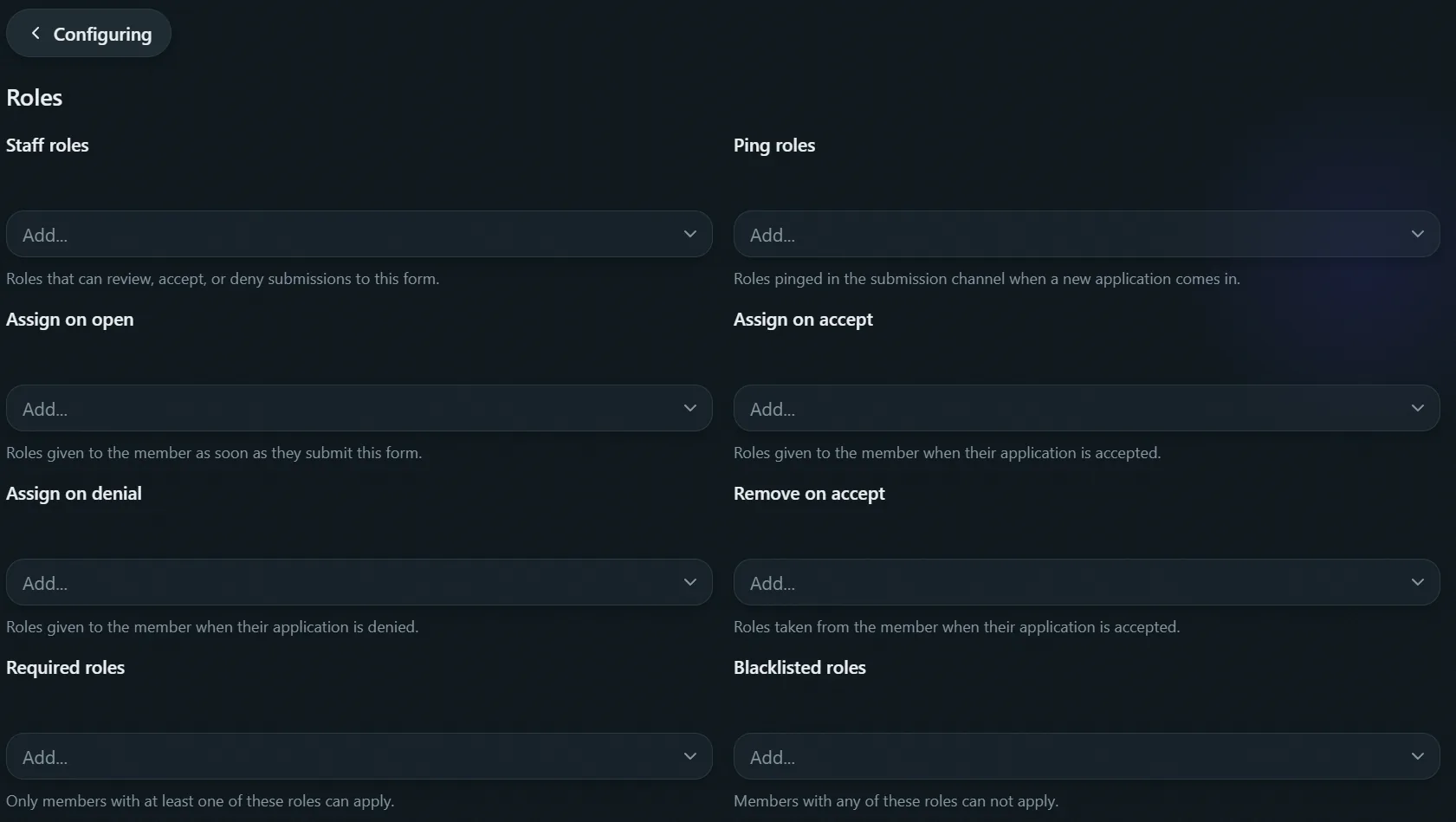
How many roles each list can hold depends on your server's plan, see Premium.
- Staff roles: review, accept, deny.
- Ping roles: pinged on submission.
- Assign on open: given the moment they start applying.
- Assign on accept / Remove on accept: role changes on acceptance.
- Assign on denial: role given on denial.
- Blacklisted roles: can't apply, checked first.
Channels

- Submission channel: required, where completed applications post with Accept/Deny buttons.
- Logging channel: open/submit/accept/deny events, separate from the submission message.
Questions
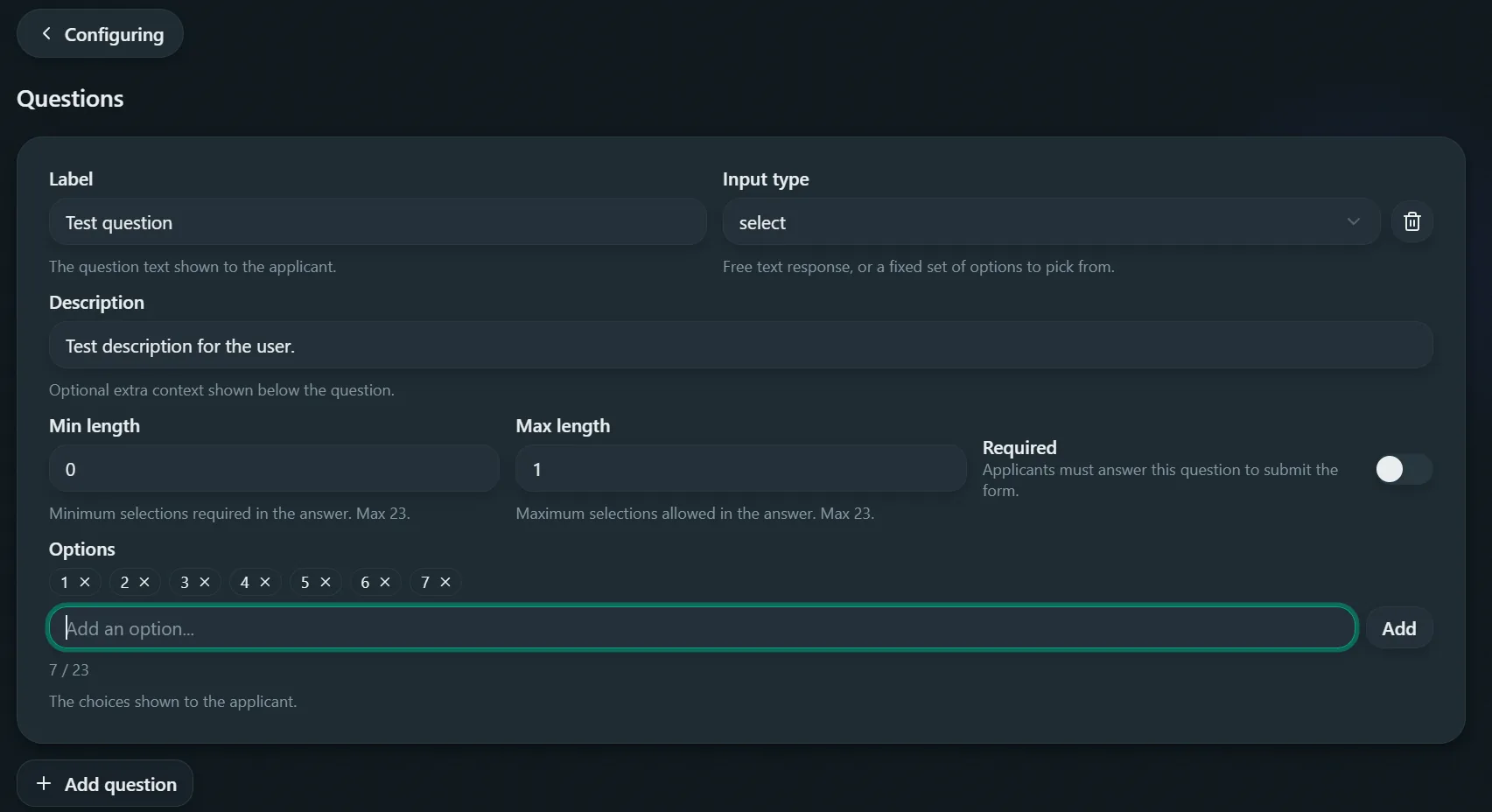
Questions are asked one at a time in DMs rather than in a modal, so there's no five-question cap like ticket forms have.
- Label: shown to the applicant.
- Description: optional extra context.
- Input type: text (with a length range) or a select menu with your own options.
- Required: must answer or can skip.
Applicants see a review screen before submitting, with a jump-back menu to fix any answer. Once submitted, that exact Q&A set is locked in even if you edit the questions later.
The number of questions depends on your server's plan, see Premium. With zero questions, applying submits immediately, see the application lifecycle.